A beginner's guide: Orange Edit – Software for programming KUKA industrial robots
OrangeEdit is specialized software designed for programming and editing code for KUKA industrial robots. This tool makes it easier to develop, manage and maintain programs written in KUKA Robot Language (KRL). If you're a beginner, this article will introduce you to the main features of OrangeEdit and show you how to use it effectively.
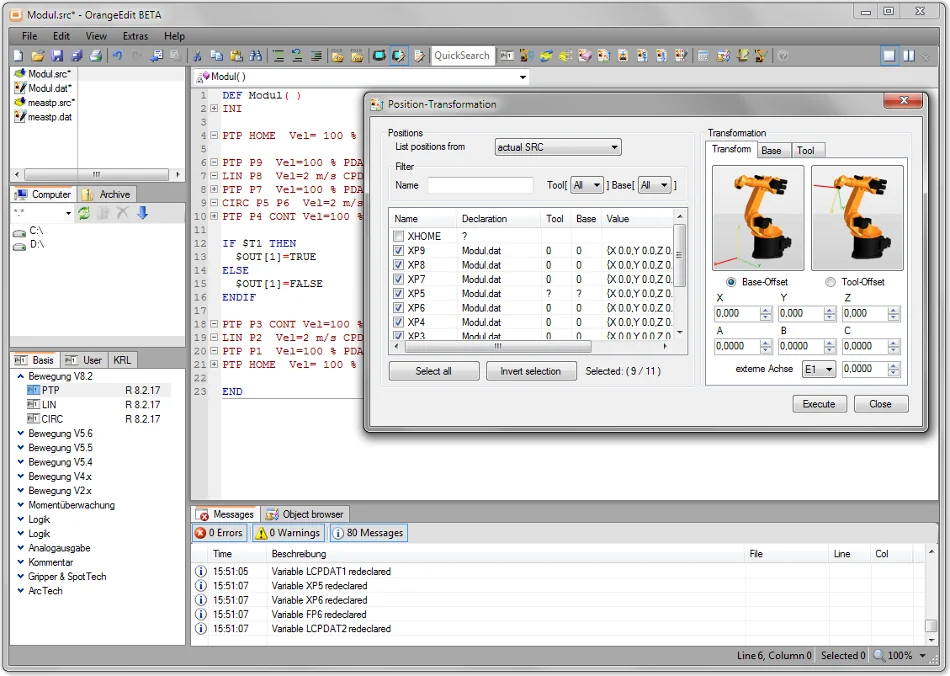
What is OrangeEdit?
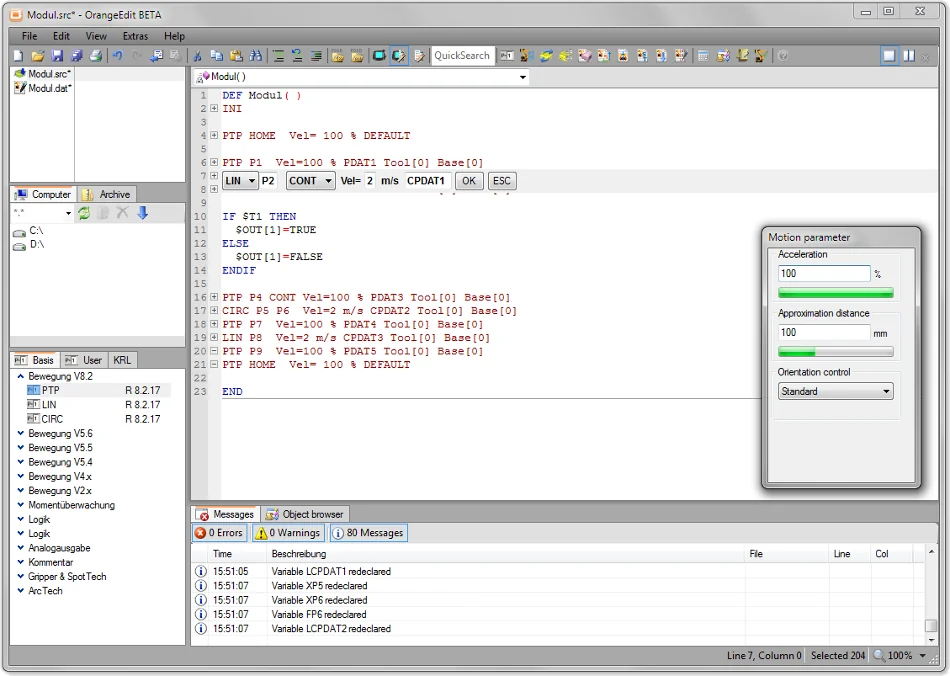
OrangeEdit is a powerful text editor created specifically for programmers who work with KUKA robots. The software offers a convenient environment for writing, checking and editing code in the KRL language.
With it you can:
- Create new robot programs.
- Edit existing programs.
- Simulate and validate code.
- Manage files from KUKA robot backups.
Main features of OrangeEdit
Syntax highlighting:
The software automatically colors the different elements of the code (keywords, variables, comments), making programs easier to read and understand.
Syntax checking:
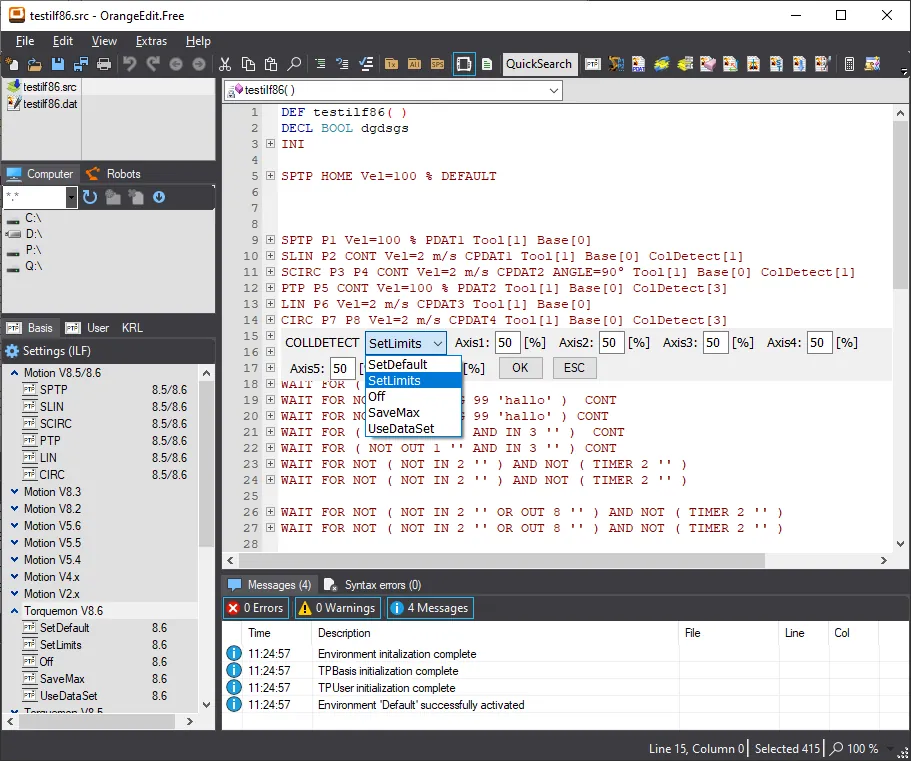
OrangeEdit identifies syntax errors in KRL code and provides guidance on corrections.
File comparison:
The comparison feature lets you see the differences between two versions of a program.
Autocompletion:
The software offers automatic completion of commands, which speeds up writing and reduces the risk of errors.
Managing backup files:
You can easily open, edit and save KUKA robot backup files directly in Orange Edit.
How do you install OrangeEdit?
Downloading the software:
Visit the official Orange Edit website and download the installation file.
Installation:
- Run the installation file.
- Follow the on-screen instructions.
- Choose the installation directory you want.
- Complete the process and launch the program.
Configuration:
The first time you launch it, you can set your preferences for language, interface layout and links to robot directories.
Basic steps for working with OrangeEdit
Opening a file
- Launch OrangeEdit.
- From the File menu, select Open.
- Select a KRL file from your computer or a backup directory.
Creating a new program
- Go to File > New.
- Choose a KRL program template or start with an empty file.
- Enter your code using KRL syntax.
Checking the syntax
- Once you've entered the code, click Check Syntax.
- The software will mark any errors and suggest corrections.
Saving a program
- Select File > Save As.
- Specify a file name and a directory to save to.
Make sure the file is saved with the extension .src or .dat (typical for KUKA programs).
Useful tips for beginners
Get to know KRL:
Review the basic principles of the KRL programming language to understand the structure and syntax of the code.
Work with backup files:
Open existing KUKA robot backup files to get familiar with real examples and program structures.
Use the comparison feature:
When changing programs, use the file comparison feature to avoid mistakes.
Practice regularly:
Create and edit small programs to get used to OrangeEdit's interface and features.
Code snippets for beginners
Examples of simple KRL programs you can edit in OrangeEdit
Code snippet:
DEF HelloWorld()
; This program moves the robot to a start position and prints a message
PTP $POS_ACT ; Move to the current position
HALT ; Stop the program
; Display a message
WAIT SEC 2
MESSAGE(‘Hello, World!’)
END
Copy and paste this code into OrangeEdit, then edit it to understand how it works.
Moving the robot to a point
Code snippet:
; Declare a position
DECL POS P1
P1 = {X 100, Y 200, Z 300}
; Move to the position
MOV P1
- DECL POS P1: This declares a new position named P1.
- P1 = {X 100, Y 200, Z 300}: This position is given X, Y and Z coordinates.
- MOV P1: The robot moves to position P1.
Opening and closing a gripper
Code snippet:
; Open the gripper
$OUT[1] = TRUE
; Close the gripper
$OUT[1] = FALSE
- $OUT[1] = TRUE: This activates output 1, which is usually connected to the signal for opening the gripper.
- $OUT[1] = FALSE: This deactivates output 1 and the gripper closes.
A simple loop
Code snippet:
FOR I = 1 TO 10
MOV P1
WAIT SEC 1
ENDFOR
- FOR I = 1 TO 10: This creates a loop that runs 10 times.
- MOV P1: In each loop the robot moves to position P1.
- WAIT SEC 1: The robot waits one second before the next iteration.
Using conditions
Code snippet:
IF $IN[1]
MOV P1
ELSE
MOV P2
ENDIF
- IF $IN[1]: If input 1 is active (there's a signal), the first action is executed.
- ELSE: If input 1 isn't active, the second action is executed.
- MOV P1 and MOV P2: The robot moves to position P1 or P2 respectively.
Common problems and solutions
Problem: The software doesn't recognize a file.
Solution: Make sure the file has the extension .src or .dat.
Problem: Syntax error.
Solution: Check the code for missing characters or misspelled commands.
Problem: The software doesn't connect to the backup directory.
Solution: Make sure the path to the directory is configured correctly.
OrangeEdit is an indispensable tool for programming KUKA robots, especially for beginners. With its help you'll be able to create and edit programs easily and efficiently. Start with the basic features, experiment with sample code, and you'll gradually master all the ins and outs of the software.
Good luck programming industrial robots!
On the Artec Robotics “News” page you will find a variety of articles and guides on robotics and automation. Here you'll find useful information about the latest technologies, software solutions and programs that will help you dive deeper into the world of industrial robots and automated systems.
Follow the news from Artec Robotics!
MAKE AN INQUIRY